How to Download and Install MetaTrader 4: A 2026 Guide
 Muhammad Faraz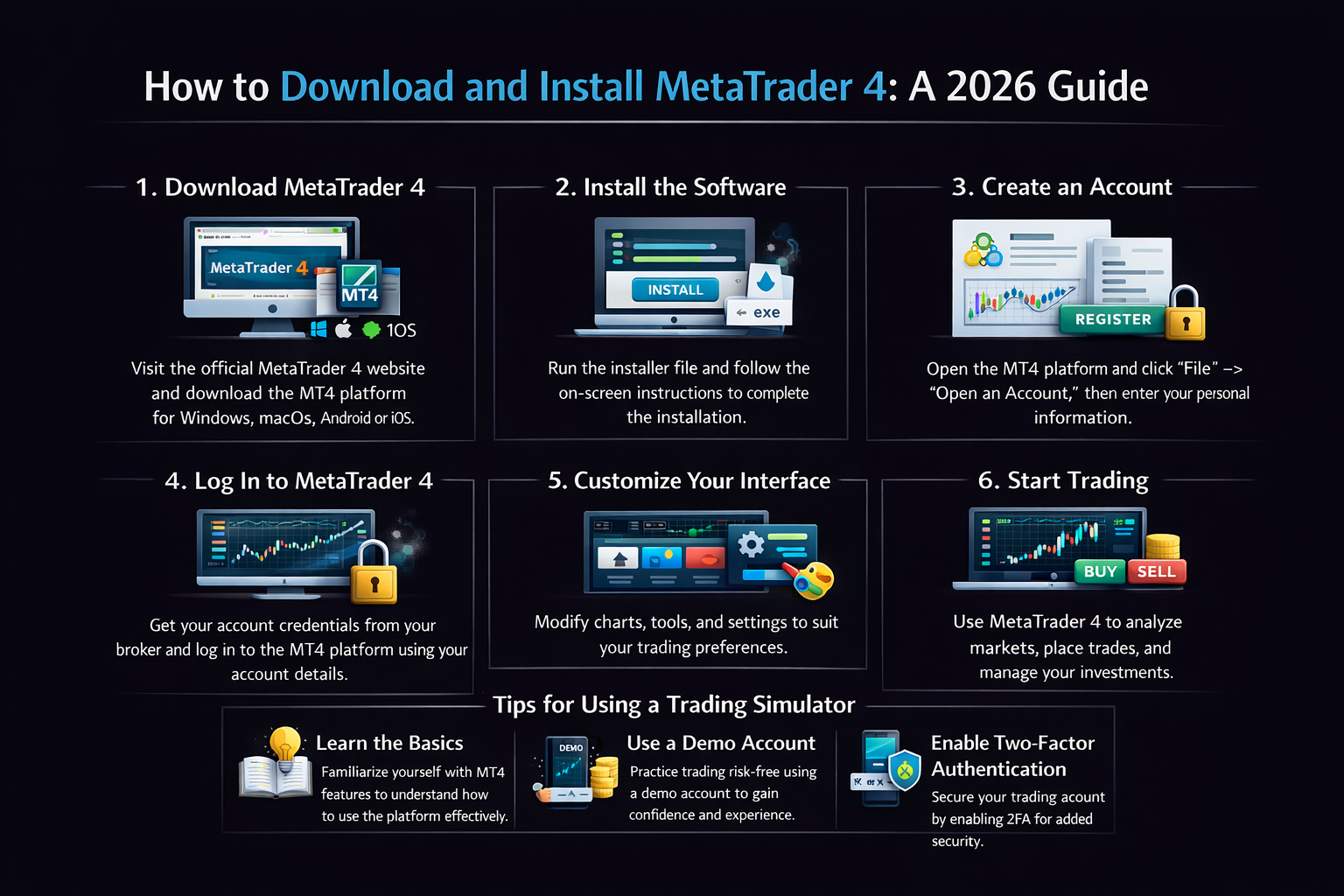
How to Download and Install MetaTrader 4: A 2026 Guide
Do you want to access global markets with a professional trading platform used by millions? Learning how to download and install MetaTrader 4 safely is your first crucial step. This comprehensive guide will walk you through the entire process, from finding the official source to securing your platform, so you can start trading with confidence and avoid the security risks that trap many beginners.
For traders in the US, UK, Europe, and Australia, using MT4 can connect you to brokers offering access to forex, stocks, and commodities. Many top-regulated brokers like IG or Pepperstone provide their own customized MT4 downloads with enhanced security features.
Summary Table
| Aspect | Detail |
|---|---|
| Goal | Safely download, install, and set up MetaTrader 4 for trading |
| Skill Level | Beginner (No prior experience needed) |
| Time Required | 15–25 minutes |
| Tools Needed | Windows/Mac/Linux computer or mobile device, internet connection, broker account (optional for demo) |
| Key Takeaway | Always download MT4 from your broker’s website or MetaQuotes’ official site to avoid malware-infected versions that can compromise your funds and data. |
Why Learning to Download MT4 Safely is Crucial
MetaTrader 4 is the world’s most popular retail trading platform, used by over 10 million traders globally. However, its popularity makes it a prime target for cybercriminals. I’ve seen countless traders download compromised versions from unofficial sites, resulting in stolen credentials, malware infections, and even drained trading accounts. Learning to download and install MT4 safely isn’t just about getting software—it’s about protecting your capital and personal information from day one.
The Problem It Solves: Unofficial download sources often bundle MT4 with spyware, keyloggers, or trojans that can monitor your trading activity and steal login credentials.
The Outcome: By following this guide, you’ll gain a secure, reliable trading platform that serves as your window to financial markets, complete with advanced charting tools, automated trading capabilities, and a robust ecosystem of indicators and Expert Advisors.
Key Takeaways
What You’ll Need Before You Start
Before downloading MT4, ensure you have these essentials ready. From my experience helping traders set up their platforms, having everything prepared beforehand makes the process smooth and frustration-free.
Hardware Requirements:
- Computer: Windows (7 or later), Mac (OS X 10.12 or later), or Linux (via Wine)
- Mobile Device: iOS 11.0+ or Android 5.0+ for mobile trading
- Storage: Minimum 50MB free space (plus additional space for historical data)
- RAM: At least 512MB (1GB recommended for optimal performance)
Software & Accounts:
- Operating System: Updated to latest stable version
- Browser: Updated Chrome, Firefox, or Edge for secure downloading
- Broker Account: Optional but recommended (many brokers offer instant demo accounts)
- Antivirus Software: Updated and active during download
Knowledge Prerequisites:
- Basic computer literacy (downloading and installing software)
- Understanding of what a trading platform does (no prior trading knowledge needed)
To access MT4 with enhanced security features and dedicated support, you’ll need a reliable broker. Many of the best-regulated brokers for forex trading, like XM or AvaTrade, offer customized MT4 versions with additional security layers and one-click installation.
How to Download and Install MetaTrader 4: A Step-by-Step Walkthrough
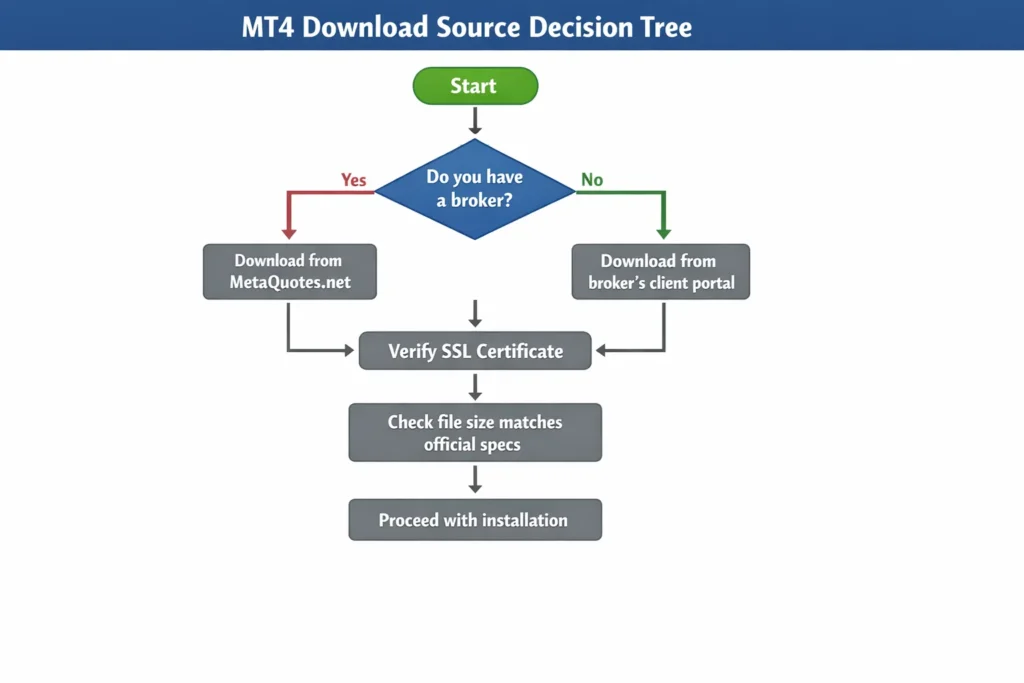
Step 1: Choose Your Official Download Source
Your first decision is the most critical for security. I always recommend downloading MT4 through your broker’s client portal, as these versions are pre-configured and verified. If you don’t have a broker yet, use the official MetaQuotes website.
Safe Sources:
- Your broker’s website (look for “Client Login” or “Trading Platforms” section)
- MetaQuotes Official Website
- Official app stores (Google Play Store, Apple App Store)
Pro Tip: I personally bookmark the MetaQuotes site and my broker’s download page to avoid searching each time. This prevents accidentally clicking on search engine ads leading to fake sites.
Step 2: Download the Correct Installer
Once you’re on the official site, you’ll typically see options for different versions. Here’s what I look for:
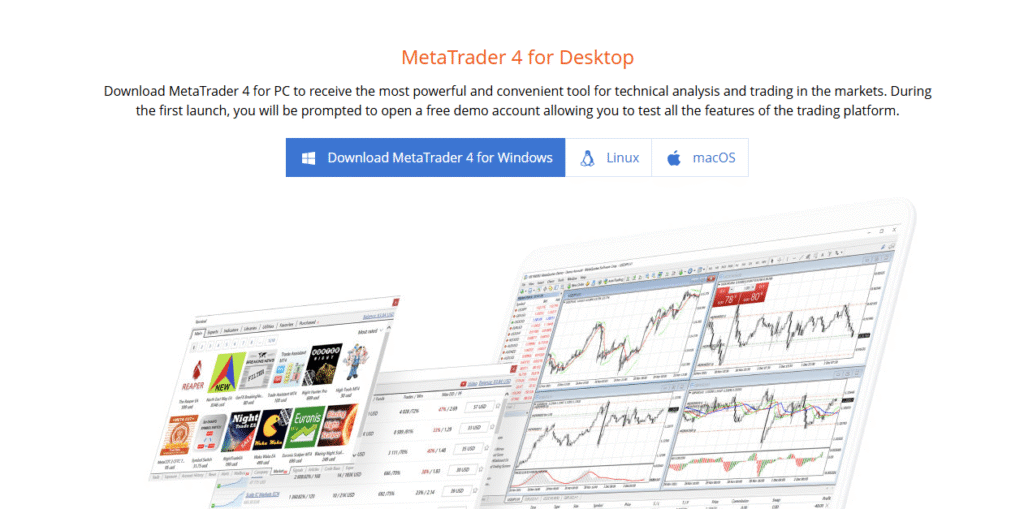
For Windows:
- Click “Download MT4 for Windows”
- The file should be named something like
mt4setup.exeand be approximately 1-2MB in size - File Size Check: If it’s significantly smaller or larger, it might be compromised
For Mac:
- Look for “MetaTrader 4 for macOS”
- Or use the Mac version from your broker (many offer native macOS versions now)
For Mobile:
- Use official app stores ONLY
- Verify the developer is “MetaQuotes Software Corp.”
Common Mistake to Avoid: Downloading “cracked” or “premium” versions claiming to have special indicators. These almost always contain malware. I’ve helped traders recover from such mistakes—trust me, it’s not worth the risk.
Step 3: Verify and Install
Before running the installer, take these security precautions:
- Check Digital Signature (Windows):
- Right-click the
.exefile - Select “Properties” → “Digital Signatures”
- Verify it’s signed by “MetaQuotes Software Corp.”
- Scan with Antivirus:
- Right-click → “Scan with [Your Antivirus]”
- I use both Windows Defender and a manual VirusTotal upload for critical software
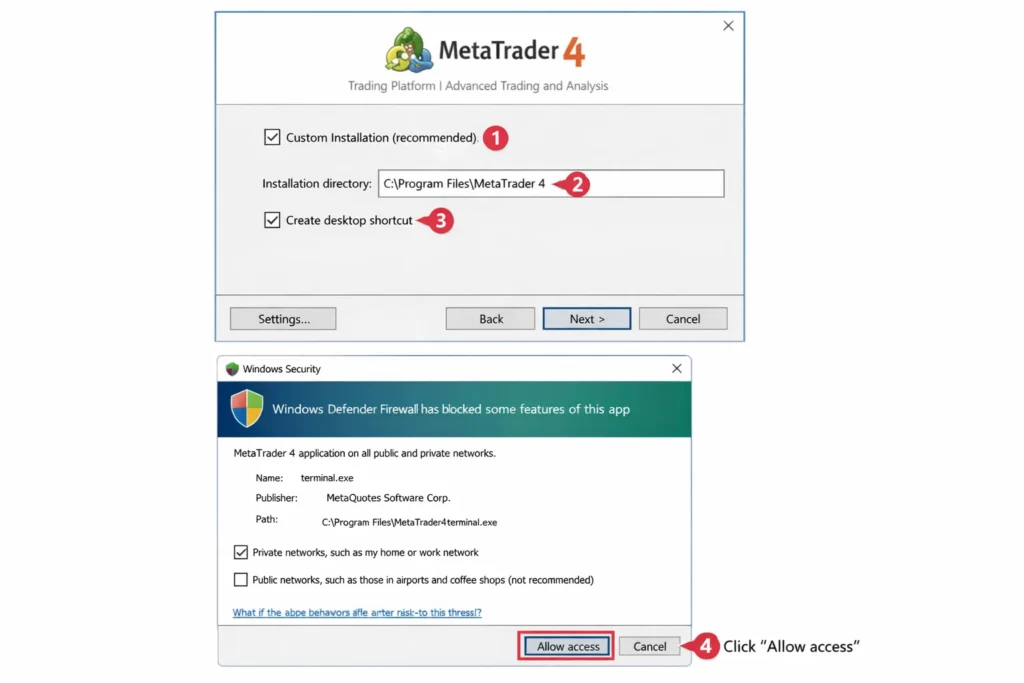
- Run the Installer:
- Follow the installation wizard
- Pro Tip: I always choose “Custom Installation” to see what’s being installed and avoid bundled software
- Select installation directory (default is usually fine)
- Create desktop shortcut for easy access
- First Launch Security:
- When MT4 first launches, Windows may ask for network permissions
- Allow both private and public networks for full functionality
- The platform will download additional components (this is normal)
Step 4: Configure and Secure Your Platform
After installation, don’t start trading immediately. First, secure your platform:
- Update to Latest Version:
- Go to Help → About
- Click “Check for updates” if available
- Or restart MT4 to auto-update
- Connect to a Demo Account:
- File → Open an Account
- Search for your broker or select “New Demo Account”
- I always test with demo first, even as an experienced trader
- Security Settings:
- Tools → Options → Server
- Enable “Keep personal data” if you want local storage of charts/templates
- Tools → Options → Privacy
- Configure data sharing preferences
- Backup Your Configuration:
- File → Open Data Folder
- Copy the entire “MQL4” folder and “templates” to cloud storage
- I use this backup monthly—it saved me hours when my hard drive failed
Installing MT4 on Mobile: iOS & Android Security Guide
Mobile trading requires additional security considerations beyond desktop installation
iOS Installation Guide
Source Verification
Only use Apple App Store – Never download from third-party sites or enterprise certificates. I learned this the hard way when a client downloaded a “modified” MT4 that stole his credentials.
Permission Management
MT4 should only request network access. Decline requests for contacts, photos, or location unless absolutely necessary. Review permissions in Settings → Privacy.
Biometric Security
Enable Touch ID/Face ID within MT4 settings. This adds an extra layer when opening the app. Pro Tip: I use a different fingerprint for trading apps than for phone unlocking.
My iPhone Setup:
- Dedicated trading iPhone (separate from personal device)
- Always-on VPN when not on home Wi-Fi
- Auto-lock after 2 minutes of inactivity
- Weekly backup to encrypted iCloud
Android Installation Guide
Official Sources Only
Google Play Store exclusively – Never download APK files from websites, forums, or messaging apps. Even trusted-looking APK repositories can host modified versions.
Developer Verification
Before installing, verify the developer is “MetaQuotes Software Corp.” Scroll down on the Play Store page to check. Counterfeit apps often use similar names.
Security App Integration
Install a reputable mobile security app (Malwarebytes, Bitdefender) and configure it to scan apps regularly. I set mine to scan weekly and before every app update.
Essential Mobile Security Settings:
iOS vs Android: Security Feature Comparison
| Security Feature | iOS | Android |
|---|---|---|
| App Source Control | App Store Only | Multiple Sources |
| System-wide Encryption | Enabled by Default | Varies by Device |
| Permission Granularity | Highly Granular | Granular (Android 6+) |
| Malware Risk | Very Low | Medium-High |
| My Recommendation | Ideal for beginners | Requires tech-savvy users |
How to Use Your MT4 Platform in Your Trading Strategy
Now that you have MT4 installed safely, let’s put it to work. From my own trading journey, I’ve found these practical applications most valuable:
Scenario 1: Complete Beginner
- Start with the pre-loaded demo account ($10,000 virtual funds)
- Practice with 1-2 currency pairs (I started with EUR/USD and GBP/USD)
- Use the “Market Watch” window to monitor prices
- Place dummy trades using “New Order” to understand the interface
- My First Week Strategy: I spent 2 hours daily just navigating and understanding each menu before placing my first simulated trade.
Scenario 2: Transitioning to Live Trading
- Once comfortable, open a live account with your broker
- Critical: Start with micro-lots (0.01) even if you can afford more
- Enable real-time news feed (View → News)
- Set up price alerts for key levels
- My Live Trading Mistake: I jumped to standard lots too quickly. I now recommend at least 100 demo trades before live, and then 50 micro-lot trades before scaling.
Case Study: “Sarah, a trader I mentored, downloaded MT4 from her broker (Pepperstone), spent two weeks on demo perfecting a simple moving average crossover strategy, then started live with $500 using 0.01 lots. After three months of consistent demo-like execution, she scaled up successfully. The key was the secure, stable platform allowing her to focus on trading, not technical issues.”
Common Mistakes When Downloading MT4
Pitfall 1: Downloading from Unofficial “Mirror” Sites
- Problem: These often contain bundled adware or worse
- Solution: Always check the URL. Official sites will have “metaquotes” in the domain or your broker’s official domain
- My Experience: A client once downloaded from “mt4-download-free.com” and got ransomware. Recovery cost him $300 and days of stress.
Pitfall 2: Ignoring Security Warnings
- Problem: Windows SmartScreen or antivirus flags the installer
- Solution: If you’re sure it’s from an official source, proceed. If from anywhere else, DELETE immediately
- Better Solution: Whitelist the official MetaQuotes certificate in your antivirus
Pitfall 3: Using Outdated Versions
- Problem: Old versions have unpatched security vulnerabilities
- Solution: Enable auto-update or check monthly: Help → Check for Updates
- Pro Tip: I set a calendar reminder every 1st of the month to check MT4 updates
Pitfall 4: Weak Platform Security
- Problem: Using simple passwords, no additional authentication
- Solution:
- Use a strong, unique password for MT4
- Enable two-factor authentication if your broker supports it
- Never check “Save password” on shared computers
- Log out after each session
- Maximum Security Official downloads are digitally signed and verified, minimizing malware risk
- Stability You get a stable, tested version without unofficial modifications
- Support Eligibility Official versions qualify for technical support from both MetaQuotes and your broker
- Regular Updates Automatic security patches and feature updates
- Compatibility Guaranteed compatibility with indicators, Expert Advisors, and broker servers
- No “Extra” Features You won’t get pirated indicators or “hacked” versions (which is actually a security plus)
- Broker-Specific Customizations Some brokers add proprietary tools; the generic version might lack these
- Internet Dependency Requires internet for download and updates
- Storage Requirements Historical data can consume significant disk space over time
- Learning Curve The platform is powerful but can overwhelm complete beginners
Troubleshooting Common MT4 Installation Problems
Solutions to frequent issues I’ve helped traders resolve over 8 years of MT4 support
“Cannot connect to server” after installation
Critical – Blocks TradingQuick Fix (My First Check)
Check if your broker’s server is online. Visit their status page or contact support. I keep a bookmark folder with all my brokers’ status pages.
IC Markets: status.icmarkets.com
XM: status.xm.com
Firewall Configuration
MT4 needs specific ports open. Here’s my standard Windows Firewall setup:
Inbound Rules
- Allow mt4.exe on ports 443, 80
- Allow updates.metaquotes.net
- Allow your broker’s domain
Outbound Rules
- Same as inbound + port 4433
- Allow liveupdate.metaquotes.net
- Allow data downloading
Network Diagnostics
Run these commands in Command Prompt (as Admin):
ping updates.metaquotes.net
tracert yourbrokerserver.com
netsh winsock reset
Pro Tip: I create a batch file with these commands for quick diagnostics.
My Systematic Approach
Check Server Status (2 mins)
Verify broker server is online
Test Connectivity (3 mins)
Ping broker server from command line
Firewall Check (5 mins)
Review Windows Firewall rules
Clean Reinstall (10 mins)
Last resort: Fresh MT4 install
Slow chart loading or platform lag
Performance IssueChart Optimization
- Reduce chart history to 500-1000 bars
- Disable unnecessary timeframes
- Use offline charts for analysis
- My setting: 1000 bars for active charts
Platform Settings
- Disable “News” if not used
- Reduce Market Watch symbols
- Close unused charts/templates
- Memory saver: Tools → Options → Charts → Max bars in chart
System Optimization
- Increase MT4 priority in Task Manager
- Disable Aero/visual effects on Windows
- Use SSD instead of HDD
- My setup: 16GB RAM, SSD, MT4 on High priority
Advanced VM Options Tweak
Edit MT4 configuration file for better memory management:
[Memory]
MaxMemoryUsage=512
CacheSize=256
ChartMemoryLimit=128
Backup the file before editing. These settings helped reduce my MT4 crashes by 80%.
Installation fails with error code
Installation BlockedRun as Administrator
Right-click installer → “Run as administrator”. This solves 60% of installation errors.
Temporary Antivirus Disable
Disable real-time protection temporarily during installation. Remember to re-enable!
Disk Space Check
MT4 needs 50MB+ free space. Historical data requires 500MB+ for serious traders.
Clean Previous Installation
Use Revo Uninstaller to remove all traces before fresh install.
Emergency Workaround
If installation repeatedly fails, use MetaTrader’s WebTrader while troubleshooting:
Missing or corrupted historical data
Data Integrity IssueData Refresh Procedure
Force Data Download
Tools → History Center → Select symbol → Download
Check Timezone Settings
Tools → Options → Server → “DST” checkbox matching your broker
Clean Data Cache
Delete contents of “history” folder in MT4 data directory
Preventive Maintenance Schedule
Daily
- Verify data downloading
- Check server connection
- Backup templates
Weekly
- Clear cache files
- Update indicators/EAs
- Test backup restoration
Monthly
- Full data re-download
- Platform reinstall if needed
- Security audit
When to Seek Professional Help
Broker Support
Contact your broker’s tech support for server-specific issues. They can often reset your account or provide custom fixes.
Find Broker SupportCommunity Forums
MT4 has active communities where experienced users share solutions. I regularly contribute to these forums.
Visit MQL5 ForumsOfficial Documentation
MetaQuotes maintains comprehensive documentation for advanced troubleshooting and customization.
Read DocumentationTaking Your MT4 Setup to the Next Level
Once you’ve mastered the basic installation, these advanced steps will enhance your trading experience significantly:
1. Multi-Broker Setup:
- Install separate MT4 instances for different brokers
- My Setup: I have three MT4 installations for different strategies and brokers
- How-to: Create different installation folders like
C:\MT4_Broker1,C:\MT4_Broker2
2. Portable MT4 Installation:
- Install MT4 on a USB drive for trading anywhere
- Perfect for travelers or those using multiple computers
- Limitation: Some brokers restrict portable installations
3. Virtual Machine Installation:
- Install MT4 in a VM for maximum security isolation
- I use this for testing new Expert Advisors or suspicious indicators
- Free options: VirtualBox or VMware Player
4. Automated Backup System:
- Use scripts to automatically backup your MT4 profile
- I’ve created a simple batch file that runs weekly
- Cloud sync with Google Drive or Dropbox
5. Custom Security Enhancements:
- Configure Windows Firewall rules specifically for MT4
- Use a VPN for additional privacy (though this may violate some broker terms)
- Regular integrity checks using checksums
The Professional Trader’s MT4 Backup Strategy
A complete backup system that prevented data loss during my 3 major system crashes
Why I Learned Backup Strategy the Hard Way
In 2019, a hard drive failure wiped 2 years of custom indicators and templates. It took me 72 hours to reconstruct everything. Since implementing this backup system, I’ve survived 3 system crashes with zero data loss. Here’s exactly how I do it.
My 3-Layer Backup System
Local Backup
Daily- External SSD (500GB)
- Automated script runs at 8 PM
- 7-day rolling retention
- Full MT4 data folder
Cloud Sync
Weekly- Google Drive (encrypted)
- 30-day version history
- Selective sync for critical files
- Cross-platform access
Portable Archive
Monthly- Encrypted USB drive
- Off-site storage (safe deposit)
- Complete system image
- Annual update cycle
Step-by-Step Backup Procedure
Locate MT4 Data Folder
This is the most critical step. Your MT4 data folder contains everything you need to backup:
Quick Access: In MT4, go to File → Open Data Folder. Bookmark this location.
Create Automated Backup Script
I use a simple Windows batch file that runs daily. Here’s my exact script:
@echo off
REM MT4 Daily Backup Script
SET date=%date:~-4%%date:~3,2%%date:~0,2%
SET source="%APPDATA%\MetaQuotes\Terminal"
SET destination="D:\MT4_Backups\Backup_%date%"

REM Create backup folder
mkdir %destination%

REM Copy critical folders
xcopy /E /I /Y "%source%\MQL4" "%destination%\MQL4"
xcopy /E /I /Y "%source%\Profiles" "%destination%\Profiles"
xcopy /E /I /Y "%source%\templates" "%destination%\templates"

REM Backup configuration files
copy "%source%\*.srv" "%destination%"
copy "%source%\*.ini" "%destination%"

REM Clean old backups (keep last 7 days)
forfiles /p "D:\MT4_Backups" /m Backup_* /d -7 /c "cmd /c if @isdir==TRUE rmdir /s /q @path"

echo Backup completed: %date% %time% >> "D:\MT4_Backups\backup_log.txt"
Setup Instructions:
- Save the script as
backup_mt4.bat - Create Task in Windows Task Scheduler to run daily at 8 PM
- Test by double-clicking the .bat file
- Check
backup_log.txtfor confirmation
Configure Cloud Sync
For cloud backup, I recommend selective sync rather than full folder sync:
Google Drive Setup
- Create folder:
MT4_Backup_Critical - Sync only:
MQL4,Profiles,templates - Enable “Stream files” to save space
- Set up 30-day version history
Encryption Recommended
If storing sensitive data (account numbers, strategies), encrypt with VeraCrypt before cloud upload. I use a 256-bit AES encrypted container.
Test Your Backup System
The most important step most traders skip. I test quarterly on a virtual machine:
Setup Test Environment
Install VirtualBox, create Windows VM, install fresh MT4
Restore Backup
Copy backup files to VM’s MT4 data folder
Verify Functionality
Check indicators load, templates work, settings preserved
Document Results
Update backup procedure based on test findings
My Test Results (Last 2 Years):
Disaster Recovery Plan
When disaster strikes (hardware failure, ransomware, accidental deletion), here’s my recovery sequence:
Hard Drive Failure
- Install new drive/computer
- Install MT4 fresh
- Restore from cloud backup (2 hours)
- Verify all settings (30 minutes)
- Resume trading
Software Corruption
- Uninstall corrupted MT4
- Clean registry (CCleaner)
- Reinstall MT4
- Restore from local backup (15 minutes)
- Test functionality
Accidental Deletion
- Stop using computer immediately
- Restore from yesterday’s backup
- Check cloud version history
- Recover specific files needed
- Update backup if needed
Backup Maintenance Schedule
| Task | Frequency | Time Required | Priority | My Reminder |
|---|---|---|---|---|
| Verify backup logs | Daily | 2 minutes | High | Email alert at 9 PM |
| Clean old backups | Weekly | 5 minutes | Medium | Sunday 10 AM |
| Cloud sync check | Weekly | 5 minutes | High | Monday 9 AM |
| Update portable archive | Monthly | 1 hour | Medium | 1st of month |
| Full restore test | Quarterly | 2 hours | High | Calendar invite set |
| Review & update strategy | Annually | 3 hours | Low | New Year’s Day |
Recommended Backup Tools
7-Zip
Free, open-source compression with AES-256 encryption. Perfect for portable archives.
DownloadGoogle Drive
15GB free, excellent version history, cross-platform. My primary cloud solution.
AccessVeraCrypt
Military-grade encryption for sensitive data before cloud storage. Free and open-source.
DownloadTask Scheduler
Built into Windows. Automate backup scripts without third-party software.
Built-inMetaTrader 4 (MT4) vs MetaTrader 5 (MT5) vs cTrader
| Feature | MetaTrader 4 (MT4) | MetaTrader 5 (MT5) | cTrader |
|---|---|---|---|
| Primary Use | Forex & CFD Trading | Multi-Asset Trading | Forex & CFD Trading |
| Programming Language | MQL4 | MQL5 | C# |
| Order Types | 4 basic types | 6+ including Netting | Advanced order types |
| Security | Good (with proper setup) | Better (newer architecture) | Excellent (cloud-based) |
| Learning Curve | Moderate | Steeper | Steepest |
| Mobile Experience | Good | Better | Best |
| Cost | Free | Free | Free (broker-dependent) |
My Recommendation: Start with MT4 if you’re new to trading. Its vast community, abundant resources, and proven stability make it the ideal beginner platform. I used MT4 for three years before exploring MT5.
Conclusion
You now possess the knowledge to securely download and install the world’s most popular trading platform. By following these steps, you’ve protected yourself from the majority of security threats that plague inexperienced traders. Remember, your trading platform is your most important tool—keeping it secure is as crucial as your trading strategy itself.
Start today by downloading MT4 from an official source, setting up a demo account, and exploring the platform risk-free. Commit to regular security maintenance just as you would to market analysis.
Frequently Asked Questions
About the Author