How to Use MetaTrader 5: A Step-by-Step Guide for Beginners
 Muhammad Faraz
How to Use MetaTrader 5 A Step-by-Step Guide for Beginners
Feeling overwhelmed by the charts, tools, and options in MetaTrader 5? You’re not alone. This powerful platform is the industry standard for a reason, but it can be intimidating. This step-by-step guide will transform you from a confused newcomer to a confident user. You’ll learn how to navigate the interface, place your first trade, and use the essential tools that professional traders rely on every day.
For traders in the US, UK, Canada, and Australia, mastering MT5 is crucial for accessing global markets like forex, stocks, and commodities through many top-rated international and local brokers such as IC Markets, Pepperstone, or FXPro, who offer MT5 as their primary platform.
Summary Table
| Aspect | Detail |
|---|---|
| Goal | To install, set up, and execute basic trading operations on the MetaTrader 5 platform. |
| Skill Level | Absolute Beginner |
| Time Required | 30-60 minutes for initial setup and first steps. |
| Tools Needed | A computer or smartphone, an internet connection, and a demo or live trading account from a broker offering MT5. |
| Key Takeaway | MT5 is a comprehensive toolbox. You don’t need to learn everything at once. Focus on mastering the core functions—navigation, charting, and order placement—to start your trading journey confidently. |
Why Learning to Use MetaTrader 5 is Crucial
Think of MT5 not just as software, but as your primary cockpit for financial markets. Whether you’re interested in forex, stocks, indices, or cryptocurrencies, MT5 provides a unified, professional-grade environment to analyze and trade them. The problem for beginners is its sheer capability, which can lead to analysis paralysis or costly mistakes. By systematically learning the platform, you solve the problem of inefficient trading and gain control. The outcome is clear: confident, precise, and informed trading decisions that move you from guessing to executing a structured strategy.
Key Takeaways
What You’ll Need Before You Start
Before diving into the platform, let’s get you equipped.
Knowledge Prerequisites: A basic understanding of what financial instrument you want to trade (e.g., Forex pairs like EUR/USD, stock indices like the S&P 500). Familiarity with fundamental trading concepts like “bid/ask price” and “leverage” is helpful but not essential, as we’ll cover the practical application.
Tools & Platforms:
- A Computer or Mobile Device: MT5 runs on Windows, macOS, iOS, and Android. The desktop version (Windows/macOS) offers the full suite of features.
- A Reliable Internet Connection.
- A Broker Account: You cannot use MT5 in a vacuum. You need to download the platform from or connect it to a broker that supports MT5. This broker provides you with the live market data and executes your trades.
To get started, you’ll first need to choose a broker that offers MT5. Many of the best forex and CFD brokers for beginners and pros alike, such as IC Markets (known for low spreads) or Pepperstone (great for advanced tools), provide seamless MT5 integration. We recommend starting with their free demo account to practice.
Essential MT5 Keyboard Shortcuts Cheat Sheet
Save hours of clicking! Master these keyboard shortcuts to navigate MT5 like a pro. Print this cheat sheet and keep it next to your trading desk.
Chart Navigation
Quick Trading
Timeframes & Analysis
How to Use MetaTrader 5: A Step-by-Step Walkthrough
Step 1: Download, Install, and Log In
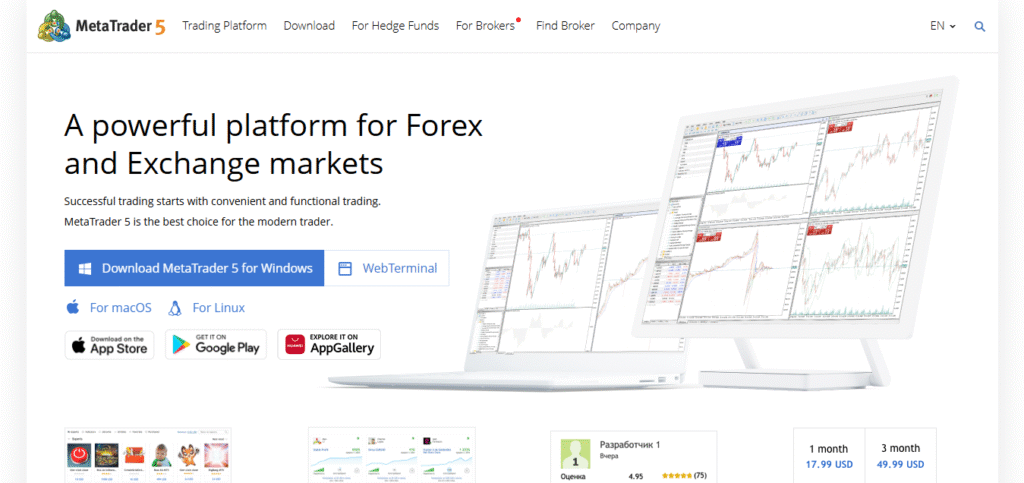
First, visit your chosen broker’s website and find their trading platforms section. Download the MetaTrader 5 installer for your operating system. Run the installer—it’s a straightforward process. Once installed, open MT5. You will be prompted to log in. Use the demo account credentials provided by your broker (you can usually create one instantly on their site). Never start with a live account.
Pro Tip: Most brokers have multiple demo servers. If your login fails, double-check you’ve selected the correct server from the broker’s list.
Step 2: Understand the Main Interface
Upon logging in, you’ll see the default workspace. Don’t be intimidated. Let’s break it down:
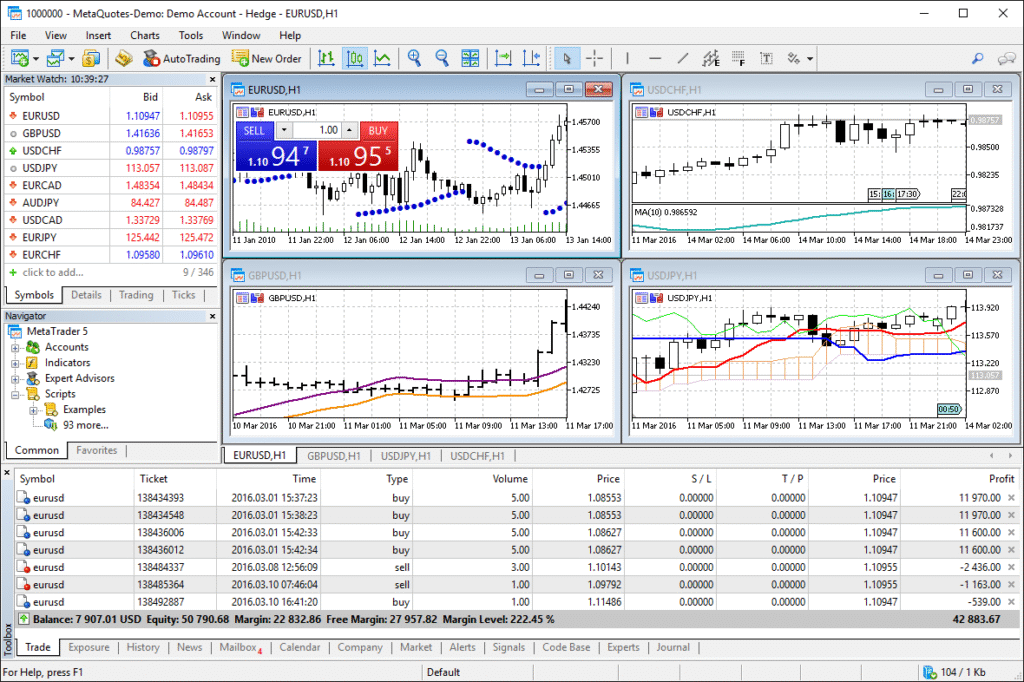
- Market Watch (Top Left): Lists all available trading symbols (e.g., EURUSD, XAUUSD). Right-click here and select “Symbols” to add/remove instruments.
- Navigator (Left Sidebar): Your toolbox. Contains your Accounts, Indicators, Expert Advisors (EAs – trading robots), and Scripts.
- Chart Area (Center): The main event. This is where price action is displayed.
- Terminal (Bottom): This multi-tab window is crucial. The “Trade” tab shows your open orders and positions. The “History” tab shows past trades. The “Journal” tab logs all platform activity and errors.
Common Mistake to Avoid: Trying to trade from the Market Watch by clicking “Buy” or “Sell” without first opening a chart. Always analyze on a chart first.
Step 3: Open a Chart and Customize It
In the Market Watch, double-click on a symbol (e.g., EURUSD) to open its chart. Right-click on the chart for a context menu. Here you can:
- Change Timeframe: Click the toolbar buttons (M1, M5, H1, D1, etc.) or right-click -> “Timeframes”.
- Add Indicators: Click the “Indicators” button on the toolbar or go to Insert -> Indicators. Try adding a moving average to start.
- Draw Tools: Use the “Line Studies” toolbar (horizontal lines, trendlines, Fibonacci retracement) to mark up your chart.
Step 4: Place Your First Trade (Order)
There are several ways to open an order. The most controlled method is to right-click on your chart and select “Trading” -> “New Order”. The “New Order” window is your command center. Here’s what to fill:
- Symbol: Ensure it’s the pair you’re charting.
- Volume: Your trade size in lots. Start small on demo (e.g., 0.01 lots).
- Stop Loss (SL) and Take Profit (TP): These are non-optional for risk management. Set them at logical price levels (e.g., beyond recent support/resistance).
- Type: “Instant Execution” sends the order immediately at the current price. “Pending Order” allows you to set an order to buy/sell in the future if the price reaches a specified level.
- Click “Buy” or “Sell”.
Step 5: Manage Your Open Trade
Once your order is filled, it appears in the Terminal window under the “Trade” tab. You can:
- Modify SL/TP: Right-click on the trade in the Terminal and select “Modify or Delete Order”. You can drag the SL/TP lines directly on the chart.
- Close the Trade: Right-click on the trade and select “Close”. You can also click the “X” next to the trade in the Terminal.
Putting It Into Practice: From Demo to Strategy
Mastering the mechanics is just the start. The real power of MT5 comes from applying it to a trading plan.
Scenario 1: Testing a Simple Strategy. Let’s say you have a rule: “Buy EURUSD when the 50-period Moving Average crosses above the 200-period MA on the H4 chart.” Use your MT5 demo account to watch for this setup, place the trade with appropriate SL/TP, and journal the results in the platform’s “Notes” feature.
Scenario 2: Using the Economic Calendar. MT5 has a built-in calendar (View -> Economic Calendar). Before placing a trade on a major currency, check for high-impact news events (like US Non-Farm Payrolls) that could cause extreme volatility. You might decide to avoid trading or widen your stop loss.
Case Study: “A trader used the MT5 Strategy Tester to backtest a simple moving average crossover EA on GBP/USD data from 2020-2023. The test revealed the strategy was profitable in trending markets but lost heavily during sideways ranges. This insight prevented the trader from using the EA blindly and encouraged them to add a volatility filter.”
Common Mistakes When Using MT5
Pitfall 1: Trading live without demo practice. The feel of placing and managing a trade is different from reading about it. Solution: Spend at least 2-4 weeks on demo, executing a specific plan.
Pitfall 2: Ignoring the Journal tab. When an order fails or something doesn’t work, beginners often panic. Solution: Go to the Terminal -> Journal tab. It logs every action and error (e.g., “Not enough money”, “Off quotes”, “Requote”). This is your first port of call for troubleshooting.
Pitfall 3: Incorrect lot size calculation. Trading 1 lot when your account can only handle 0.01 is a surefire way to blow up an account. Solution: Use a position size calculator. Many are free online. Input your account balance, risk percentage (e.g., 1%), and stop loss distance to get the correct lot size.
Pitfall 4: Not using templates. Re-adding the same 5 indicators to every new chart is a waste of time. Solution: Set up your ideal chart with indicators and drawings, then right-click on the chart -> Template -> Save Template. Apply it to any new chart instantly.
Three Must-Know Advanced Features for Beginners
Once you’re comfortable with the basics, these features will significantly enhance your trading.
1. The “One-Click Trading” Feature: If you enter trades frequently, enable this (View -> Toolbars -> One-Click Trading). A small buy/sell panel appears on your chart, allowing ultra-fast order placement with pre-set volume and SL/TP. Warning: Only use this after you have impeccable discipline.
2. Creating Custom Alerts: You don’t need to stare at the screen. Right-click on the chart -> “Create Alert”. Set a condition (e.g., “Bid <= 1.0800”). When hit, MT5 will pop up a notification, play a sound, or even send you an email.
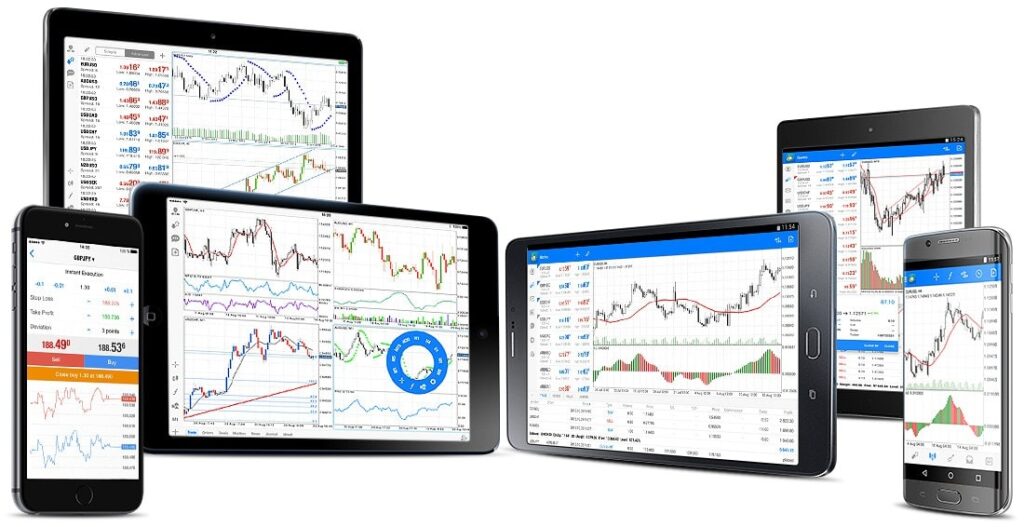
3. Using the Mobile App Synced with Desktop: Download the MT5 mobile app from your app store and log in with the same demo credentials. Your charts and pending orders will sync. This is perfect for monitoring trades or making quick adjustments on the go.
- Unmatched Versatility: Trade forex, stocks, futures, indices, and cryptocurrencies all from a single platform.
- Powerful Analysis Tools: Comes with 38 built-in indicators, 44 graphical objects, and 21 timeframes.
- Automated Trading (EAs): Create or use trading robots to execute strategies 24/7.
- Integrated Calendar & News: Stay on top of fundamental events directly within the platform.
- Vast Community: Access thousands of custom tools and scripts from the MQL5 marketplace.
- Steep Learning Curve: The professional interface and plethora of features can intimidate beginners.
- Broker-Dependent Features: Not all brokers offer the full range of instruments on MT5.
- Resource Intensive: Can be demanding on your computer’s CPU and RAM when running multiple complex tasks.
- Technical Focus: Not built for deep fundamental analysis like dedicated equity research platforms.
- Desktop-Centric: Mobile and web versions have reduced functionality compared to the desktop app.
Must-Have Free Indicators for MT5 Beginners
MT5 comes packed with powerful indicators. Don’t get overwhelmed! Start with these 5 essential built-in tools that every trader should know how to use.
1. Moving Average (MA)
BeginnerWhat it does: Smooths price data to identify trends and support/resistance levels.
How to use it: Go to Insert → Indicators → Trend → Moving Average. Try the 50-period and 200-period combination for trend identification.
2. Bollinger Bands
IntermediateWhat it does: Measures volatility and identifies overbought/oversold conditions.
How to use it: Insert → Indicators → Trend → Bollinger Bands. Default settings (20 periods, 2 deviations) work well for most traders.
3. Relative Strength Index (RSI)
BeginnerWhat it does: Measures the speed and change of price movements on a scale of 0-100.
How to use it: Insert → Indicators → Oscillators → Relative Strength Index. Look for readings above 70 (overbought) or below 30 (oversold).
4. MACD (Moving Average Convergence Divergence)
IntermediateWhat it does: Shows relationship between two moving averages of price momentum.
How to use it: Insert → Indicators → Oscillators → MACD. Watch for the MACD line crossing above/below the signal line.
5. Fibonacci Retracement
IntermediateWhat it does: Identifies potential support/resistance levels based on mathematical ratios.
How to use it: Click the Fibonacci button on the Line Studies toolbar, then click and drag from swing high to swing low (or vice versa).
Taking It to the Next Level
Exploring the MQL5 Marketplace: Inside MT5, click “View -> Marketplace” in the Navigator. Here you can browse and purchase professional-grade Expert Advisors, indicators, and utilities created by other traders. You can also find many free tools.
Learning to Backtest Properly: The Strategy Tester (View -> Strategy Tester) is your scientific lab. Learn to use different testing models (every tick, control points) and analyze the detailed reports (profit factor, max drawdown, Sharpe ratio). This is how you validate if a strategy has any statistical edge.
Internal Link Suggestion: For a deeper dive into automated trading, read our guide “How to Choose and Test Your First Expert Advisor (EA) on MT5.”
MT5 Risk Management Checklist (Before Every Trade)
The most successful traders aren’t necessarily the best at predicting markets—they’re the best at managing risk. Use this checklist before placing any trade to protect your capital.
Complete all checks before trading
1. Position Size Calculated
Have you used a position size calculator to ensure you’re not risking more than 1-2% of your account on this single trade?
2. Stop Loss Set
Is your stop loss placed at a logical technical level (beyond support/resistance) and NOT based on a random dollar amount?
3. Take Profit Set
Is your take profit placed with a risk-to-reward ratio of at least 1:1.5? (For every $1 risked, aim for $1.5+ in profit).
4. Economic Calendar Checked
Have you checked the MT5 Economic Calendar (View → Economic Calendar) for high-impact news events during your planned trade duration?
5. Multiple Timeframe Analysis
Have you checked the higher timeframe (e.g., Daily or H4) to ensure your trade direction aligns with the overall trend?
6. Maximum Open Trades Limit
Are you exceeding your pre-defined maximum number of concurrent open trades? (Suggested: 3-5 max for beginners).
7. Trading Journal Updated
Are you prepared to record this trade in your journal (including entry reason, screenshot, and eventual outcome)?
Conclusion
You’ve now navigated the essentials of MetaTrader 5. You’ve learned how to get the platform, understand its layout, customize charts, and place and manage trades with proper risk controls. Remember, proficiency comes with deliberate practice. Don’t try to learn everything at once.
Your action plan is clear:
- Open a demo account with a reputable MT5 broker.
- Spend one session just exploring each major window (Market Watch, Navigator, Chart, Terminal).
- Spend another session practicing opening, modifying, and closing 10-20 trades on demo.
- Only then, consider paper-trading a simple strategy.
How MetaTrader 5 Compares to Other Platforms
| Feature | MetaTrader 5 (MT5) | MetaTrader 4 (MT4) |
|---|---|---|
| Primary Market | Multi-Asset (Forex, Stocks, Futures, Crypto) | Primarily Forex |
| Order Types | More Advanced (6 types, 4 execution modes) | Basic (4 main order types) |
| Technical Tools | 38 Indicators, 44 Objects, 21 Timeframes | 30 Indicators, 31 Objects, 9 Timeframes |
| Programming Language | MQL5 (Object-Oriented, more powerful) | MQL4 |
| Best For | Traders wanting one platform for all markets & algorithmic trading. | Forex-focused traders using popular legacy Expert Advisors. |
Frequently Asked Questions
Recommended Resources
- MetaQuotes Official Documentation & Tutorials: The most authoritative source directly from MT5’s developers. Covers everything from basic setup to advanced MQL5 programming.
- MQL5 Community Learning Section: Free articles, video tutorials, and guides written by experienced traders and developers. Excellent for both trading strategies and programming.
- Babypips School of Pipsology: While not MT5-specific, their free forex education is invaluable for beginners. Use this knowledge within your MT5 platform.
About the Author